
DOM colors, numbers and appearance
Configure every appearance control and keep the ladder readable.
Buttons & settings
DOM → settings → Appearance
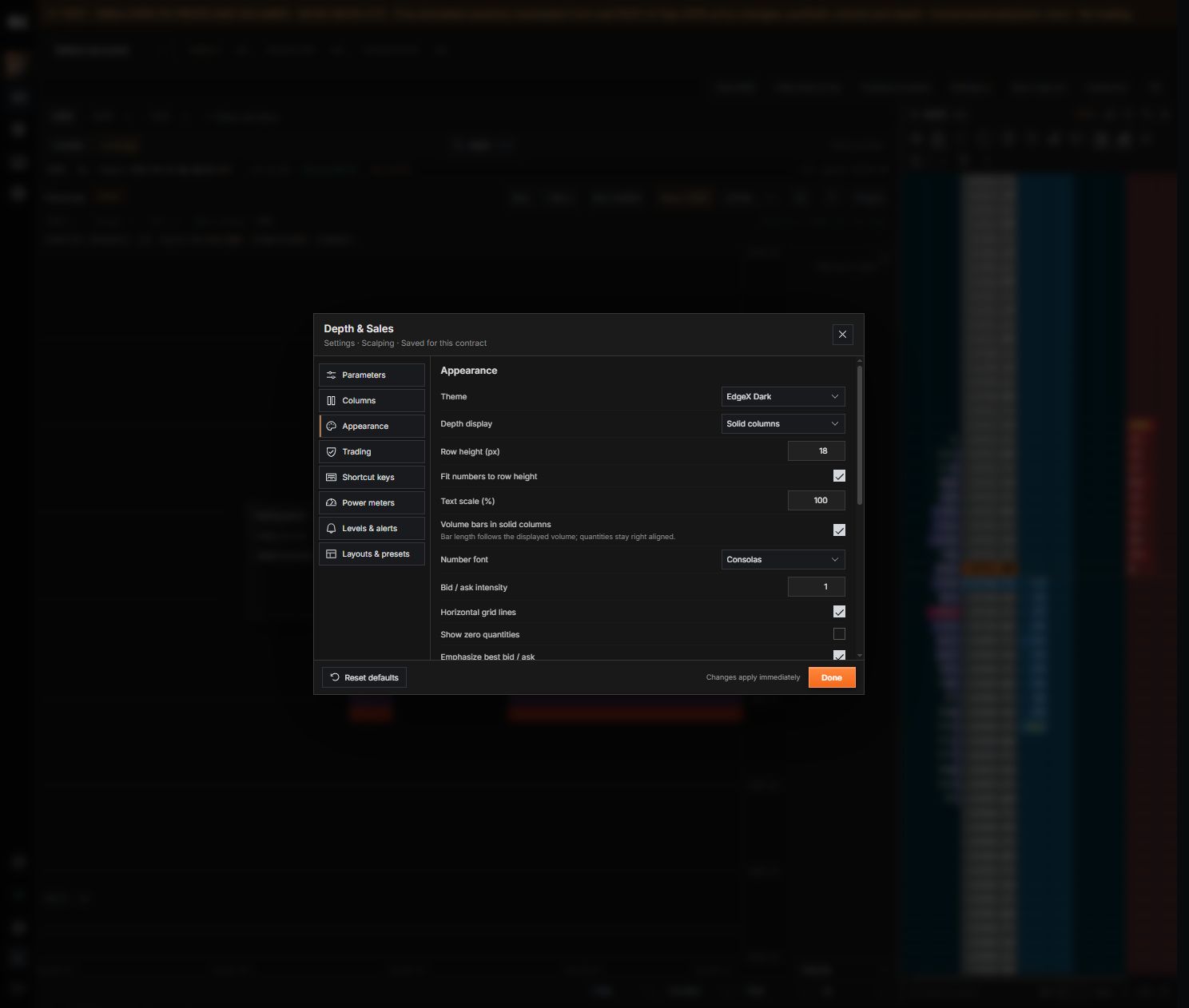
01Theme
What it does
Choose EdgeX Dark, High Contrast or Custom colors.
How to use it
Start with a theme, then fine-tune individual colors.
02Depth display
What it does
Choose solid columns, size bars or heatmap cells.
How to use it
Each visualizes the same available depth quantities.
03Row height
What it does
Set the height of each price row.
How to use it
Larger rows improve readability but show fewer levels.
04Fit numbers to row height
What it does
Scale numbers with the row.
How to use it
Use Text scale (%) when enabled; otherwise set Number size.
05Number font
What it does
Choose a monospaced numeric font.
How to use it
Unavailable fonts fall back to the system.
06Bid / ask intensity
What it does
Adjust depth color strength.
How to use it
Does not filter or alter quantities.
07Horizontal grid lines / Grid lines color
What it does
Control row separators.
How to use it
Use low contrast for a quieter ladder.
08Show zero quantities
What it does
Display or hide zero values.
How to use it
A hidden zero is different from unavailable data.
09Emphasize best bid / ask
What it does
Highlight the current inside market.
How to use it
Independent from working-order markers.
10Highlight large executions / threshold
What it does
Highlight prints at or above the chosen size.
How to use it
Tune size for the instrument being viewed.
11Trade flash duration
What it does
Set how long recent trades stay highlighted.
How to use it
Measured in milliseconds.
12Working order marker
What it does
Choose filled tags or outlines.
How to use it
Changes appearance only.
13Delta display
What it does
Show a number or number with bar.
How to use it
Delta is separate from resting bid/ask depth.
14Column colors
What it does
Set Bid, Ask, Volume profile, Price column and Ladder background.
How to use it
Apply immediately; check readability of both values and bars.
Set up the ladder appearance
Open the DOM settings icon and choose Appearance. Start with a theme and depth display, then adjust row height and numeric scaling. Use the control reference above for each option.
- Choose a theme and depth display.
- Adjust row height, number size and bid/ask intensity.
- Customize column colors and test both highlighted and neutral rows.
- Close the dialog; changes apply immediately.
Still need a hand?
Get in touch with the EdgeX team.