
Read and customize the DOM ladder
Depth, traded volume, current liquidity changes and column layouts.
Buttons & settings
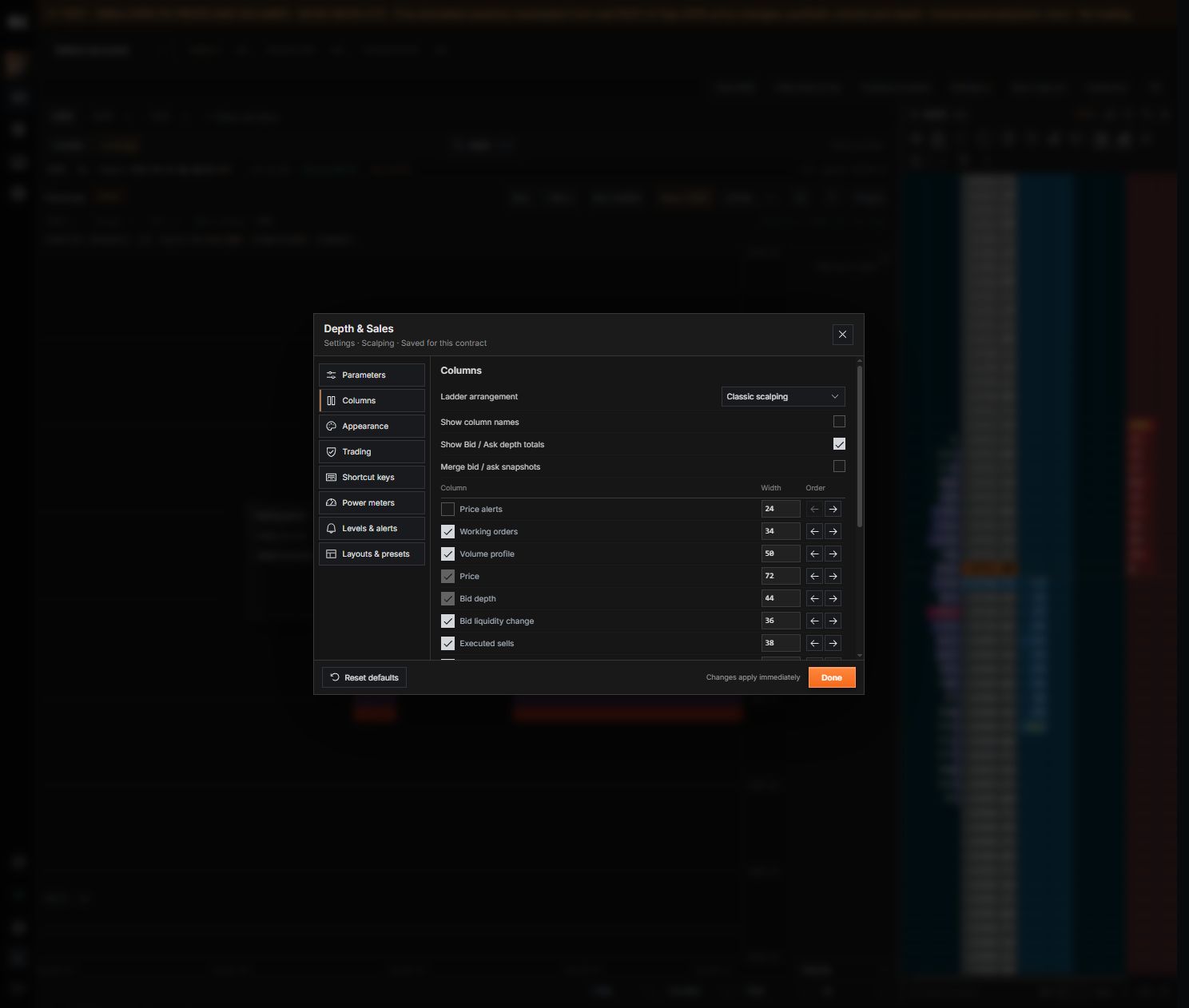
DOM → settings icon → Depth & Sales
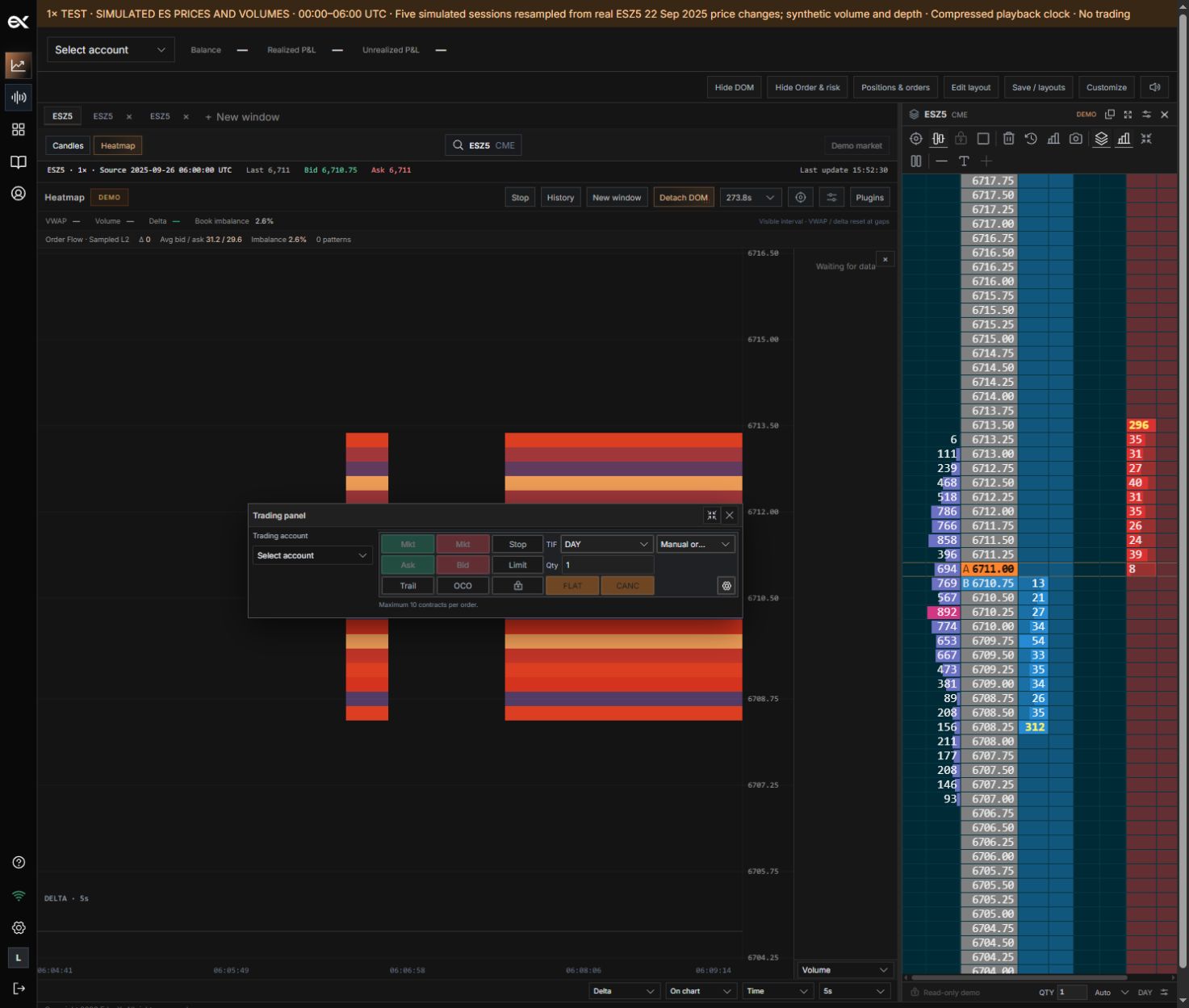
01Center ladder
What it does
Return the ladder to the current market.
How to use it
Shortcut C / Home.
02Auto center
What it does
Keep the ladder following the market.
How to use it
Shortcut A; turn off to inspect another price region.
03Freeze ladder movement
What it does
Stop automatic ladder movement.
How to use it
Does not cancel orders or disconnect the feed.
04Clear current trades
What it does
Clear the current-trade visual history.
How to use it
Shortcut X; this does not clear broker executions.
05Clear depth history
What it does
Clear displayed depth-change history.
How to use it
Does not repair missing feed updates.
06Reset volume profile
What it does
Restart the DOM session profile.
How to use it
Previously displayed captured profile totals reset.
07Capture depth snapshot
What it does
Capture the current displayed book comparison.
How to use it
Shortcut V.
08Configure columns
What it does
Open column visibility, widths and order.
How to use it
Price, Bid and Ask remain required.
09Compact ladder
What it does
Reduce the ladder to Bid / Price / Ask.
How to use it
Use when panel width is limited.
10Float / Expand / Close
What it does
Change the DOM panel presentation.
How to use it
Floating is inside the dashboard; closing the panel does not cancel orders.
11Column width / arrows
What it does
Resize a column or move it left/right.
How to use it
Additional columns can scroll horizontally.
12Show column names / totals
What it does
Show headers and bid/ask depth totals.
How to use it
Totals describe available depth, not the entire exchange book.
Read the ladder
The price ladder separates resting bid and ask depth from executed volume. Current bid-side levels sit at or below best bid; ask-side levels sit at or above best ask. Stacking and pulling describe changes in displayed liquidity, not executed delta.
Set columns and appearance
Open DOM settings. Enable the columns you need, change their order and widths, then adjust row height, font size and colors. Design templates provide starting layouts; the compact layout reduces the visible columns.
- Open the DOM settings gear.
- Select the visible columns and arrange their order.
- Adjust width and row size to keep values readable at your panel size.
Center and detach
Center returns the ladder to the current market. The floating control detaches the DOM within the dashboard; resize the floating window at its edge. Centering and the trading lock are separate controls.
Depth totals and gaps
Depth totals appear next to the edge of the populated levels. A zero, blank or missing level can reflect the available book coverage. A stale or incomplete feed can lock trading; clearing a visual history column does not repair the connection.
Still need a hand?
Get in touch with the EdgeX team.