
Set up Squawk voices and monitoring
Choose monitored workspaces, spoken modes and sound templates.
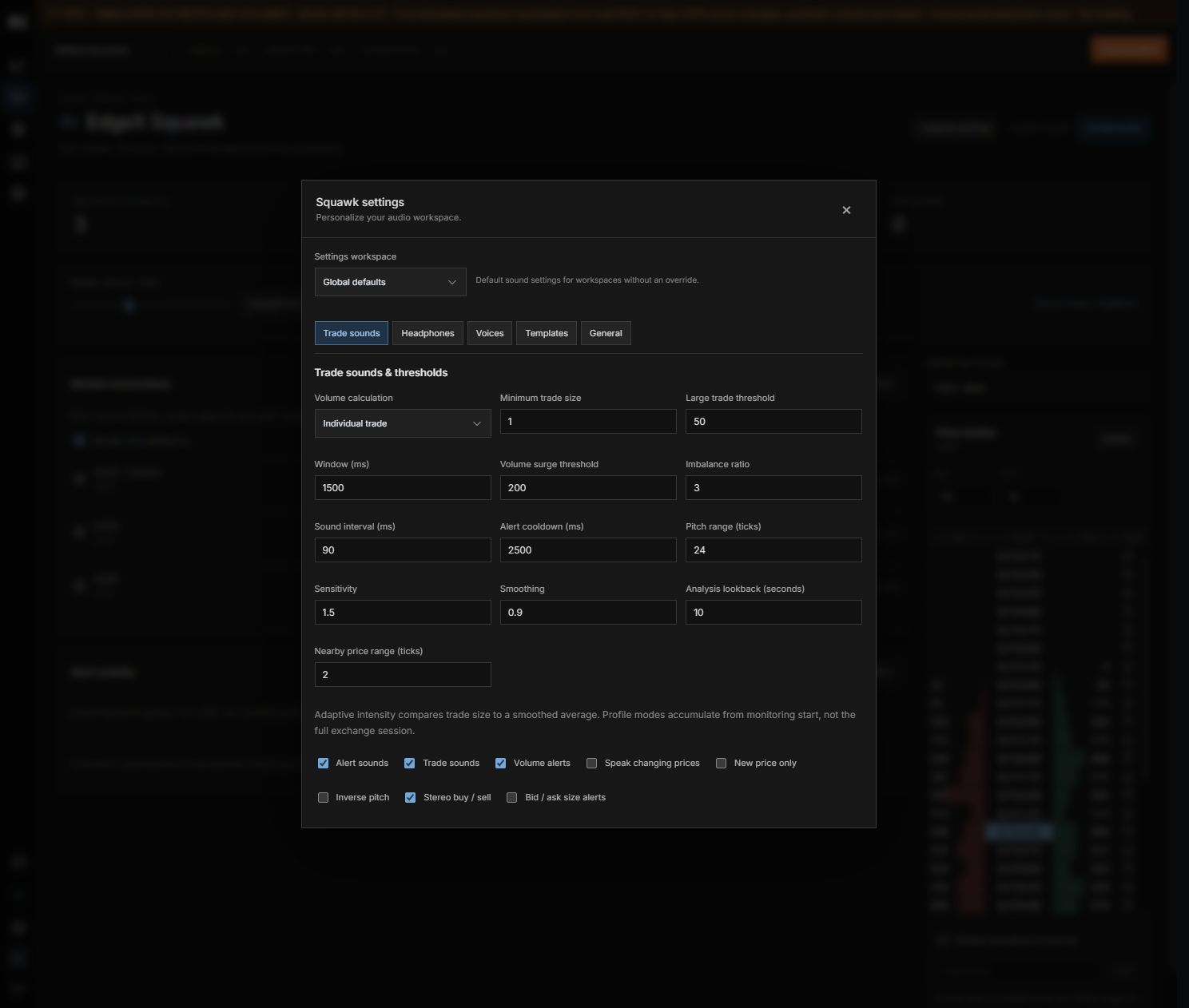
Buttons & settings
Main sidebar → Squawk → Squawk settings
01Enable audio / Mute audio
What it does
Start or mute playback.
How to use it
A user action is required after reload; muting does not stop orders.
02Monitor all workspaces
What it does
Listen to all available workspace sources.
How to use it
Disable to choose individual sources.
03Settings workspace
What it does
Choose global defaults or one workspace override.
How to use it
Use global defaults removes that override.
04Squawk mode
What it does
Choose tones only, price announcements, buy/sell at price or Pit.
How to use it
Pit adds measured flow context to trade announcements.
05Sound profile
What it does
Choose Pulse, Soft, Bell, Wood, Radar or Glass.
How to use it
Preview at a low master volume.
06Voice source / Recorded voice
What it does
Choose available speech source and voice.
How to use it
Use Test sound to check playback.
07Master volume
What it does
Set overall output level.
How to use it
Does not change thresholds or event frequency.
08Templates
What it does
Apply a preset or save a named setup.
How to use it
Review workspace scope before changing a preset.
09Keep listening when leaving Squawk
What it does
Continue audio while using other dashboard pages.
How to use it
Keep the tab open; browser sleep can interrupt sound.
10Reset audio settings
What it does
Restore audio configuration defaults.
How to use it
Review your current settings before resetting.
Start listening
Open Squawk from the main sidebar. Choose the monitored workspaces or monitor all, then enable audio. Browser audio requires a user action; reloading can require enabling it again.
Voices and modes
Open Squawk settings → Voices. Choose tones only, price announcements, buy/sell at price, or Pit for trades and flow context. Select the available voice source and recorded voice, then use Test sound.
- Choose Global defaults or a specific settings workspace.
- Select a Squawk mode and sound profile.
- Test the voice and adjust the master volume.
- Save a template for reuse; use global defaults to remove a workspace override.
Background listening
Keep listening when leaving Squawk allows audio while you use other dashboard sections. Keep the browser tab open: browser sleep or a reload can interrupt audio. Monitoring does not connect extra instruments that are not supplied by the workspace feed.
Still need a hand?
Get in touch with the EdgeX team.