
Load history and choose an interval
Automatic history, days to load, and time or event based bars.
Buttons & settings
Chart settings → Data & time
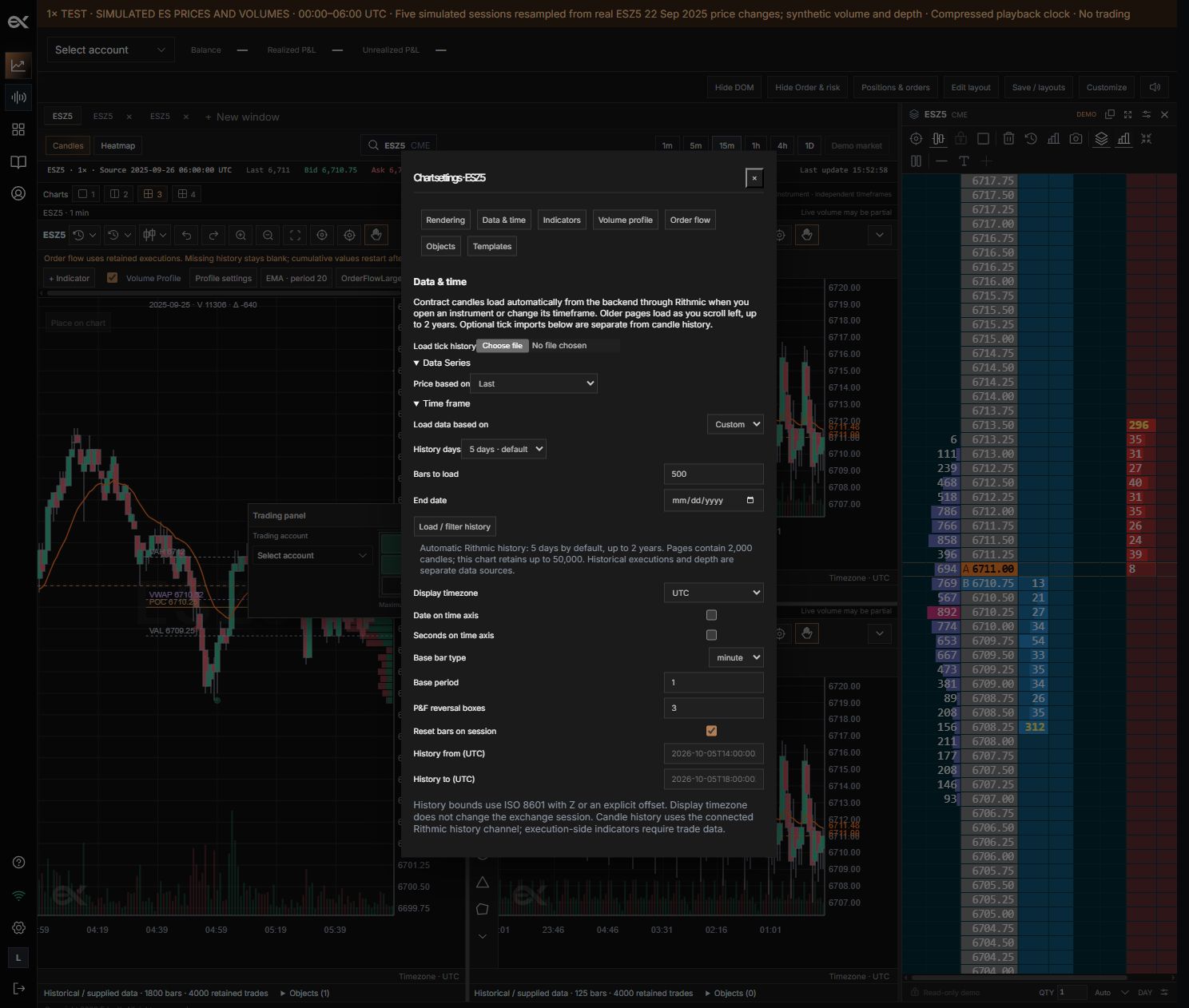
01Timeframe
What it does
Select the bar interval family and size.
How to use it
Choose minutes, then an interval; shortcuts select common periods.
02Days to load
What it does
Request historical bars for the selected number of days.
How to use it
Default: 5. Provider coverage and entitlement can limit the response.
03Bar type
What it does
Choose provider candles or an execution-based aggregation.
How to use it
Tick/volume bars require trades; candle history cannot recreate the missing prints.
04Timezone
What it does
Change displayed timestamp formatting.
How to use it
Does not change the underlying exchange timestamps.
05History
What it does
Open history controls.
How to use it
Check the full contract and interval before requesting earlier data.
Choose a bar interval
Open the timeframe menu, choose the interval family, then the size. Popular intervals are available as shortcuts. Time bars group a duration; tick bars group executions and require trade data, not just OHLC bars.
- Select the full futures contract, including expiry.
- Open the timeframe menu and select seconds, minutes or another available family.
- Choose a size and wait for the history request to finish.
Set history days
Open Chart settings, then Data & time. The chart defaults to requesting five days. Choose a shorter or longer day range there. Requests go through the EdgeX backend and connected history provider; coverage depends on contract availability and account entitlements. A requested range is not a guarantee of complete data.
History versus order flow
Historical candles can render while execution history is incomplete. Delta, trade bubbles and tick bars need actual executions. A partial-volume or limited-coverage notice means the order-flow sample is not the complete candle history. Do not interpret missing coverage as zero activity.
Still need a hand?
Get in touch with the EdgeX team.